Apple Watch
What Is the Apple Watch App?
Receiptix includes a companion Apple Watch app for quick expense tracking from your wrist. Check your spending, log expenses by voice or manually, and browse recent receipts — all without pulling out your phone.
The Watch app is designed for speed. When you need to capture an expense before you forget or glance at how much you've spent this month, it's the fastest way to do it.
What You Can Do
The Watch app has two main screens: a spending dashboard and a recent expenses list.
Dashboard
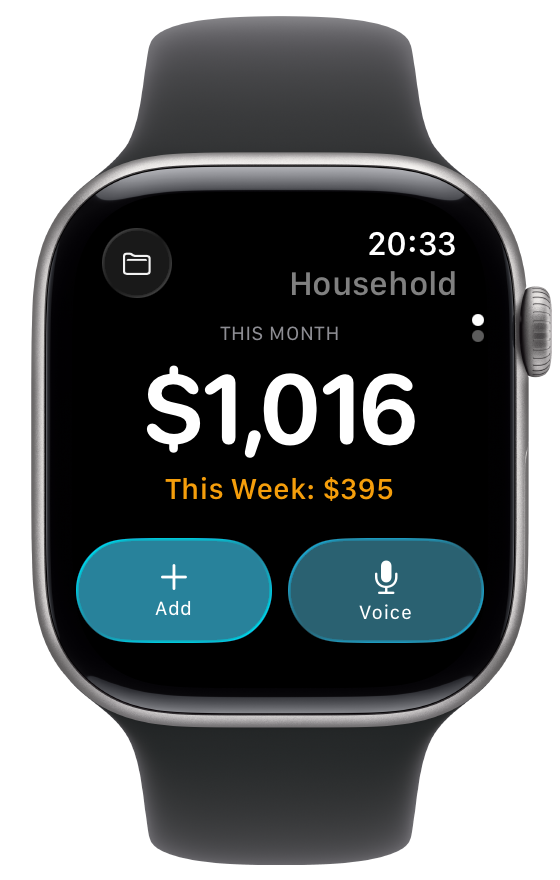
Spending Totals
See your current month's spending front and center, plus a weekly total underneath. Totals update for whichever project you have selected.
Switch Projects
Tap the folder icon to switch between Personal and any of your active projects. Your selection sticks even after restarting the app.
Adding Expenses
Voice Entry
Tap the voice button and speak naturally — something like "15 dollars for coffee." The app processes your words and creates the expense.
Manual Entry
Tap the add button to type an amount and pick a category. Your recent categories appear at the top for quick selection.
Recent Expenses
Browse and Delete
Swipe to the second screen to see your latest expenses — each showing the merchant, category, date, and amount. You can swipe left on any expense you created to delete it.
How Syncing Works
The Watch app stays in sync with your iPhone automatically. When you add an expense on your phone, it appears on the Watch. When you log one from the Watch, it shows up on your phone and any other devices signed into your account.
- Changes sync automatically between your iPhone and Watch — no manual refresh needed.
- Your selected project persists across restarts. If a project gets deleted, the Watch automatically switches back to Personal.
- Expenses you add from the Watch appear instantly on the screen — the app doesn't wait for the sync round-trip to show your entry.
Good to Know
- The Watch app is for quick logging and viewing. You can't edit existing expenses or scan receipts from the Watch — use your phone for that.
- Voice recognition uses your Watch's language setting, which may be different from your iPhone. If it's not recognizing you correctly, check your Watch language in the Watch app on your iPhone.
- Requires an iPhone paired with your Apple Watch.
- You can only delete expenses you created yourself. In shared projects, other members' expenses are view-only.