Projects
Overview
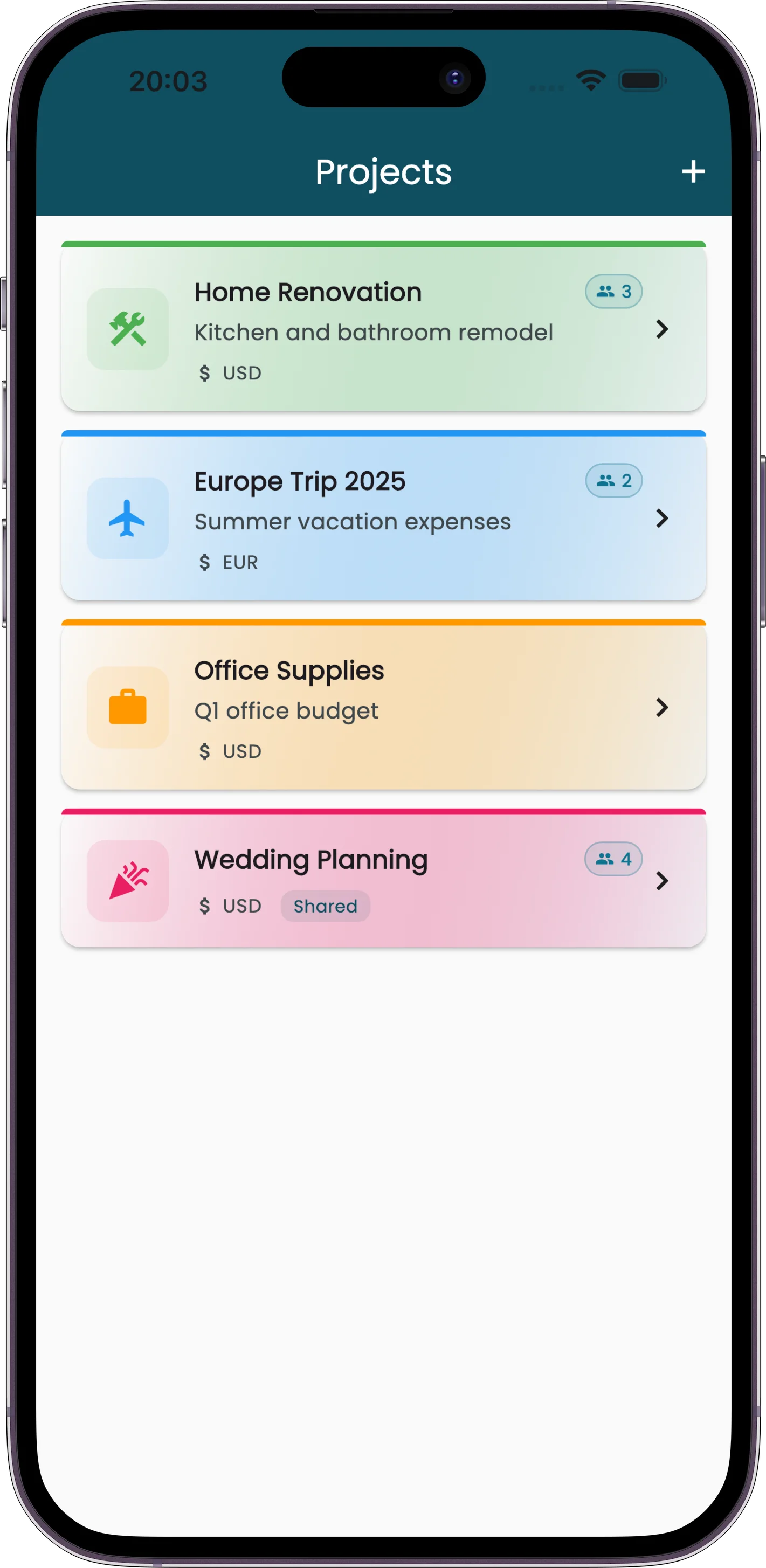
Projects let you group related expenses together. Instead of one long list of every receipt you have ever scanned, you create separate buckets for different purposes: a business trip, a home renovation, monthly groceries, a side project.
Each project tracks its own expenses, has its own currency, and generates its own reports. You can also share projects with other people, but that is covered in the Sharing Projects article.
How to Use It
Creating a Project
- Open the Projects page from the Home screen and tap the + button.
- Enter a project name and optional description.
- Pick an icon from the 15 presets: folder, home, briefcase, shopping cart, car, airplane, restaurant, medical, school, fitness, pets, celebration, savings, construction, or child care.
- Choose a color to visually distinguish this project from others.
- Set the project currency. This is fixed at creation and applies to every receipt in the project.
- Tap Create.
Adding Expenses to a Project
When you add a receipt (scan, voice, manual entry), select the target project before saving. The expense is then tied to that project and counted toward its totals.
Viewing a Project
Tap any project to see its overview. You will see the project name, member count, total spending, and a list of recent expenses. From here you can also access the project's reports and settings.
Seeing the Total Project Cost to Date
Reports open on the current month by default, so to see a project's full cost to date you switch the time period to the whole project:
- On the Home screen, tap the name at the top (it reads Personal Receipts when no project is selected) and choose the project you want.
- Open the Reports tab.
- Tap the time period filter near the top — it defaults to the current month.
- Choose Entire Project.
The all-time total appears in the center of the chart, with the full breakdown below it — no need to set custom dates. The Entire Project option only shows once a project is selected, so make sure to pick it in step 1 first.
Editing a Project
Open the project and tap the settings icon. You can change the name, description, icon, and color. The currency cannot be changed after creation.
Archiving a Project
Only the project owner can archive a project. Archiving hides it from the active project list but does not delete anything. You can still access archived projects and their data from the archived section at the bottom of the project list.
Tips
Personal Expenses Still Work
You do not have to put every expense into a project. Receipts without a project live in your personal expenses and appear in your personal reports. Projects and personal expenses exist side by side.
Currency Is Locked
The currency you choose at project creation applies to all receipts in that project. Pick carefully. If you need a different currency, create a new project.
Use Icons and Colors
With multiple active projects, icons and colors make it easy to tell them apart at a glance. Pick something descriptive: a car icon for your vehicle project, a home icon for household expenses.
Archive Instead of Delete
Finished a project? Archive it. The data stays intact for future reference, but it stops cluttering your active list.